Calculations & reports
Copy or export your report
Switch between the Compact and Expanded reports, paste them into your own document, or download a Word file.
Step-by-step
The report is the workspace view you land on after Save & Complete, and when you open an exam. It is built from your saved ratings automatically.
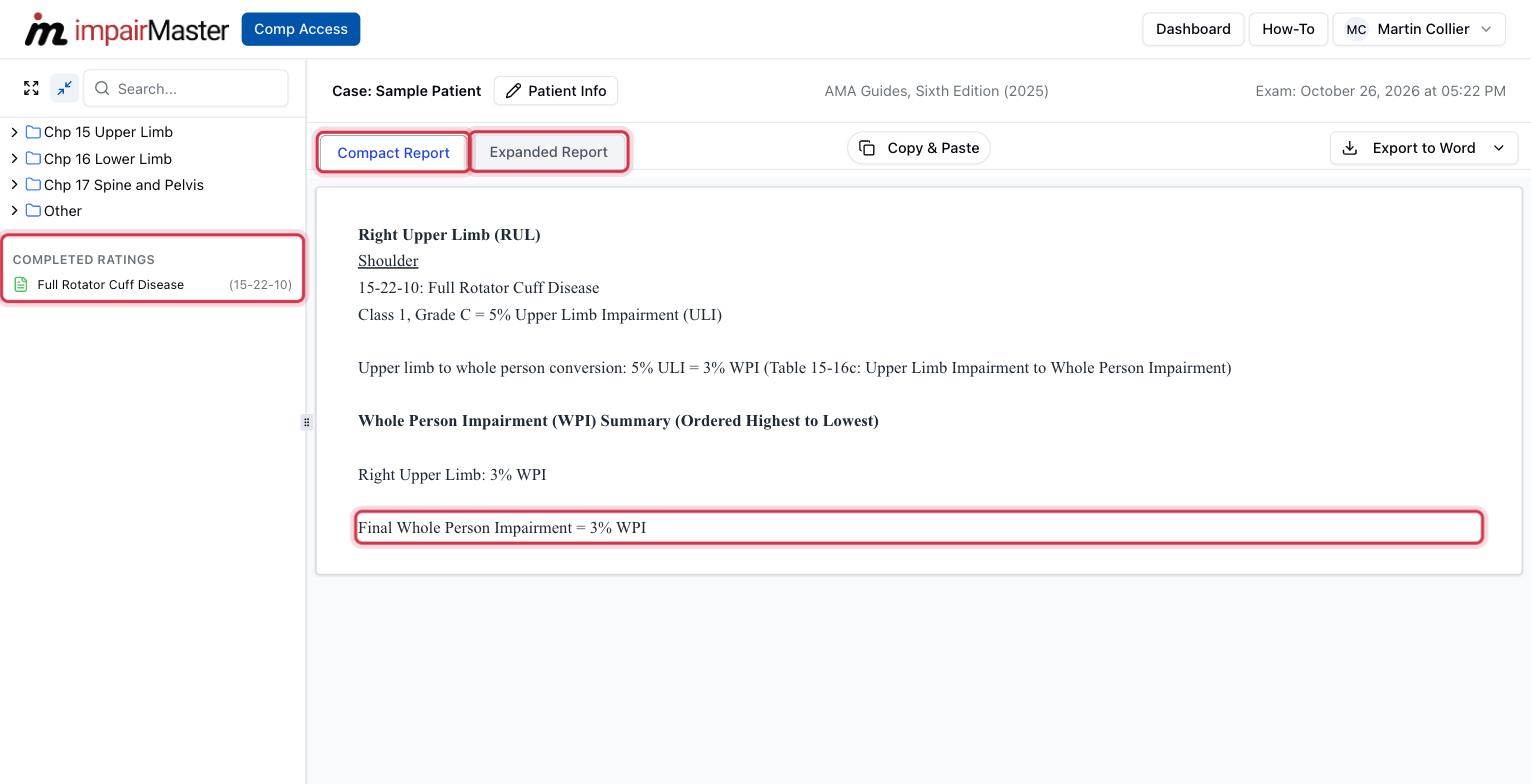
Compact Report
The Compact Report tab summarises each impairment: the DBI, its class and grade, the upper limb impairment, and the conversion to whole person impairment. It ends with the Whole Person Impairment (WPI) Summary and the final WPI. When there is more than one impairment, they are combined using the Combined Values Table (CVT).
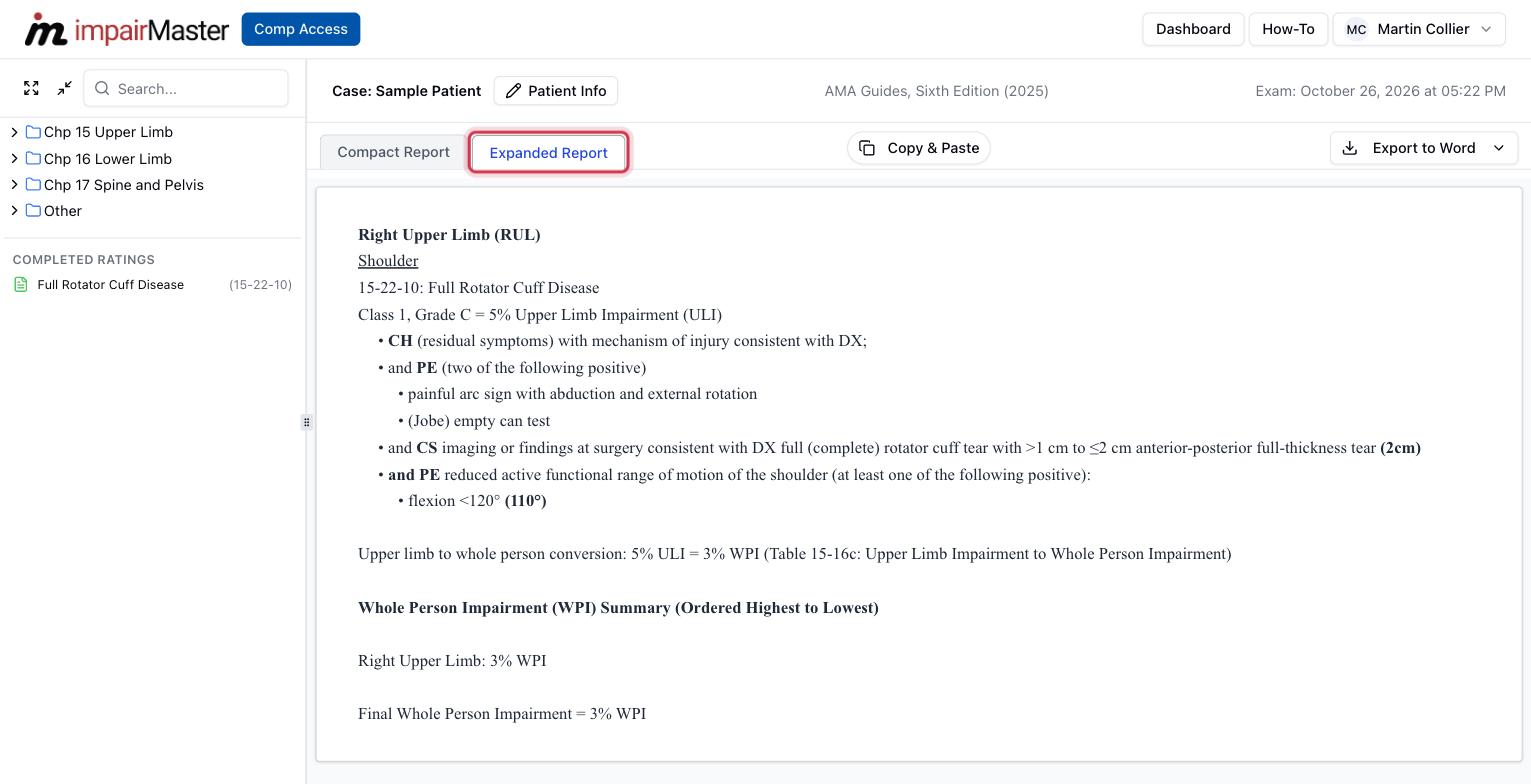
Expanded Report
The Expanded Report tab adds the full DBI criteria behind each rating: the history, physical examination, and clinical studies findings that placed it in its class, with your measurements in bold.
Copy, export, or print
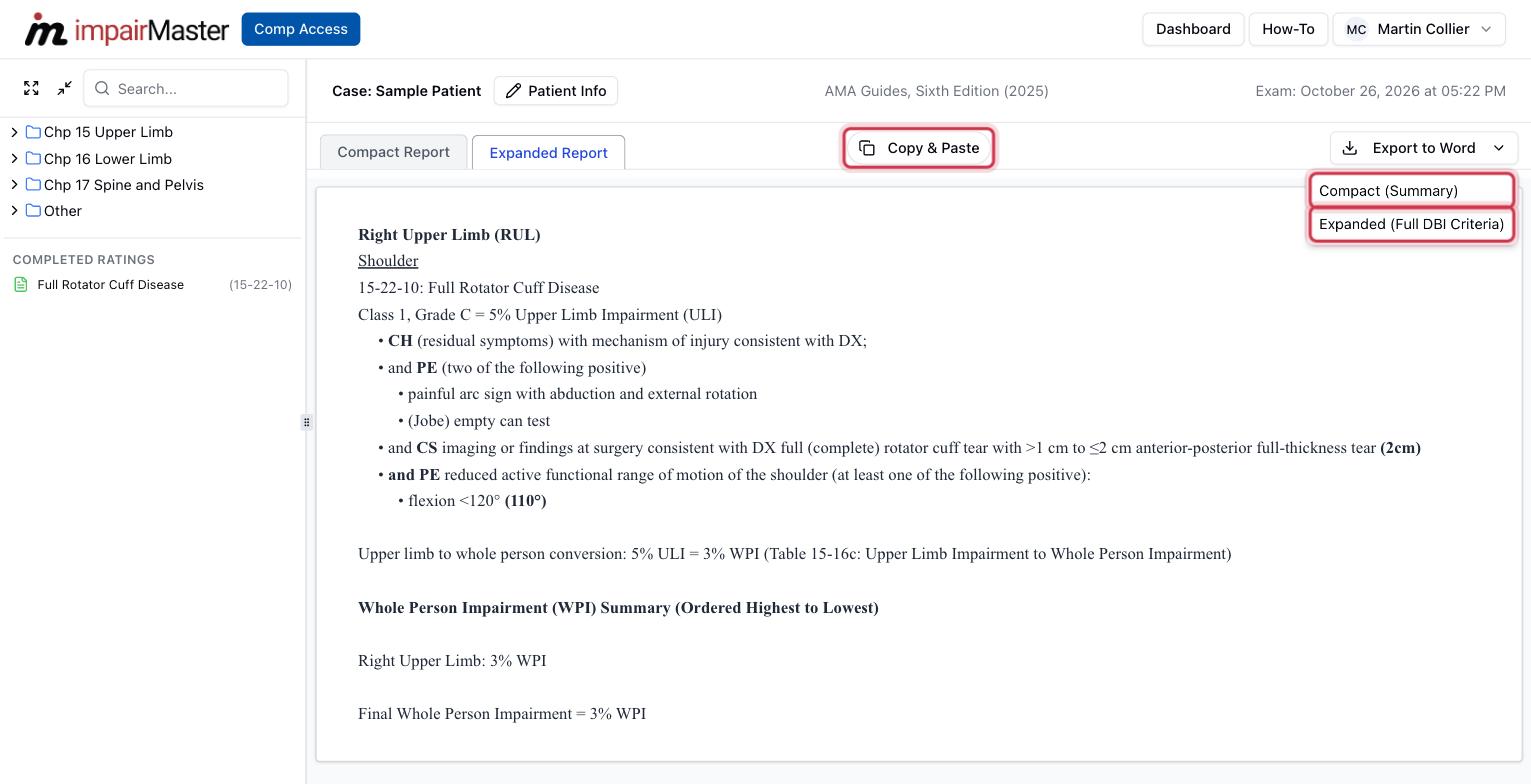
- Copy & Paste copies the tab you are viewing as formatted text. The button changes to Copied!. Paste it into your own report template or email.
- Export to Word downloads a .docx file named after the patient and exam date. Choose Compact (Summary) or Expanded (Full DBI Criteria).
To print, export to Word and print the document. That also lets you add your letterhead and signature first.
Free trial
The free trial previews one impairment; the rest of the report is blurred. Copy & Paste and Export to Word are available on paid plans. Click Upgrade Plan → or View Plans to subscribe.