Getting started
Rate a body part
Find a condition in the navigation panel, fill in the form, check the Results Preview, and save the rating.
Step-by-step
The workspace has three panels: the navigation tree on the left, the rating form in the centre, and the Results Preview on the right. This walkthrough rates a right shoulder full-thickness rotator cuff tear.
1. Find the DBI
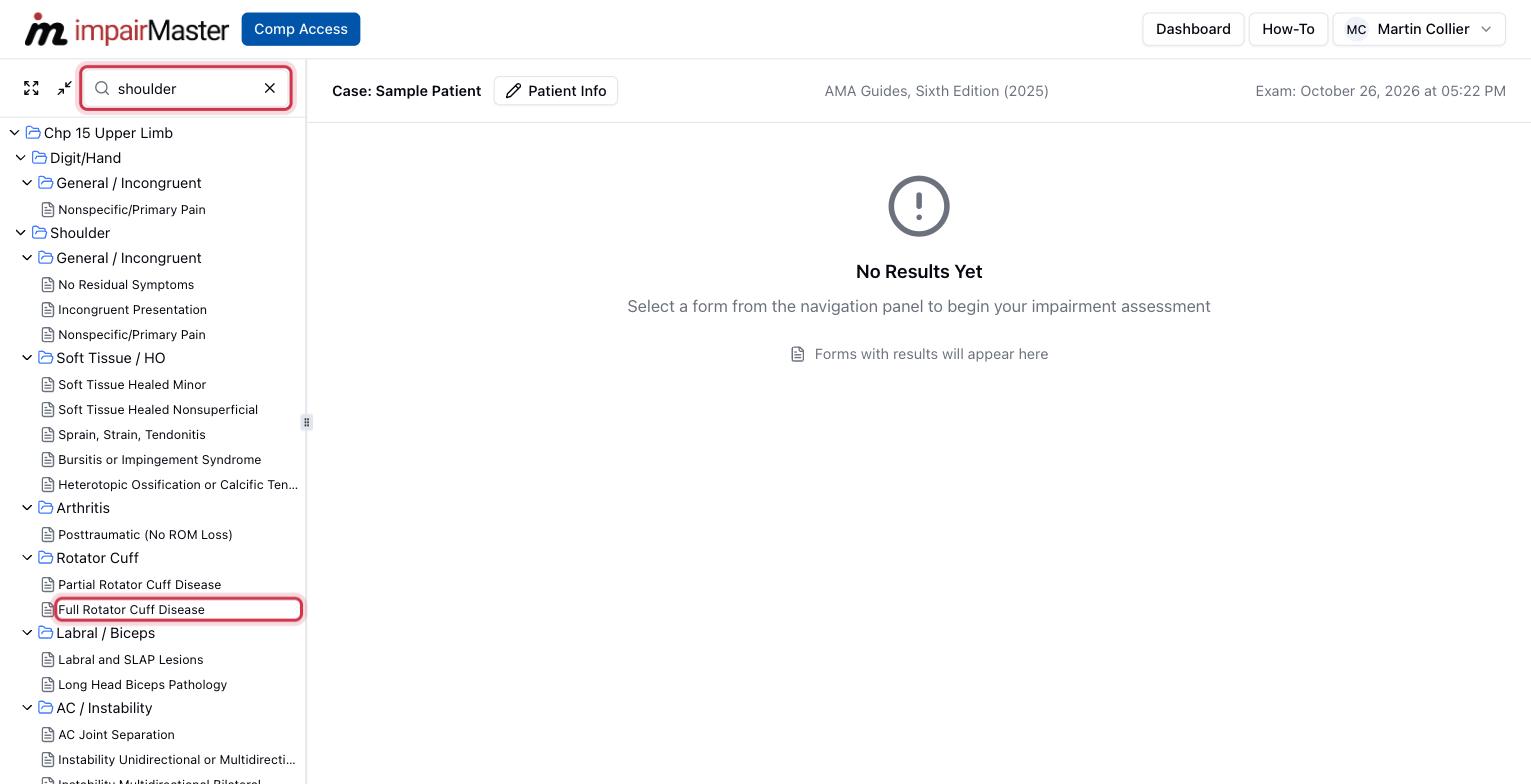
Type in Search... at the top of the left panel to filter the tree, or browse the chapters. Use Expand All and Collapse All to open or close every branch. Click the condition you want to rate. Here, Shoulder → Rotator Cuff → Full Rotator Cuff Disease.
2. Choose the side
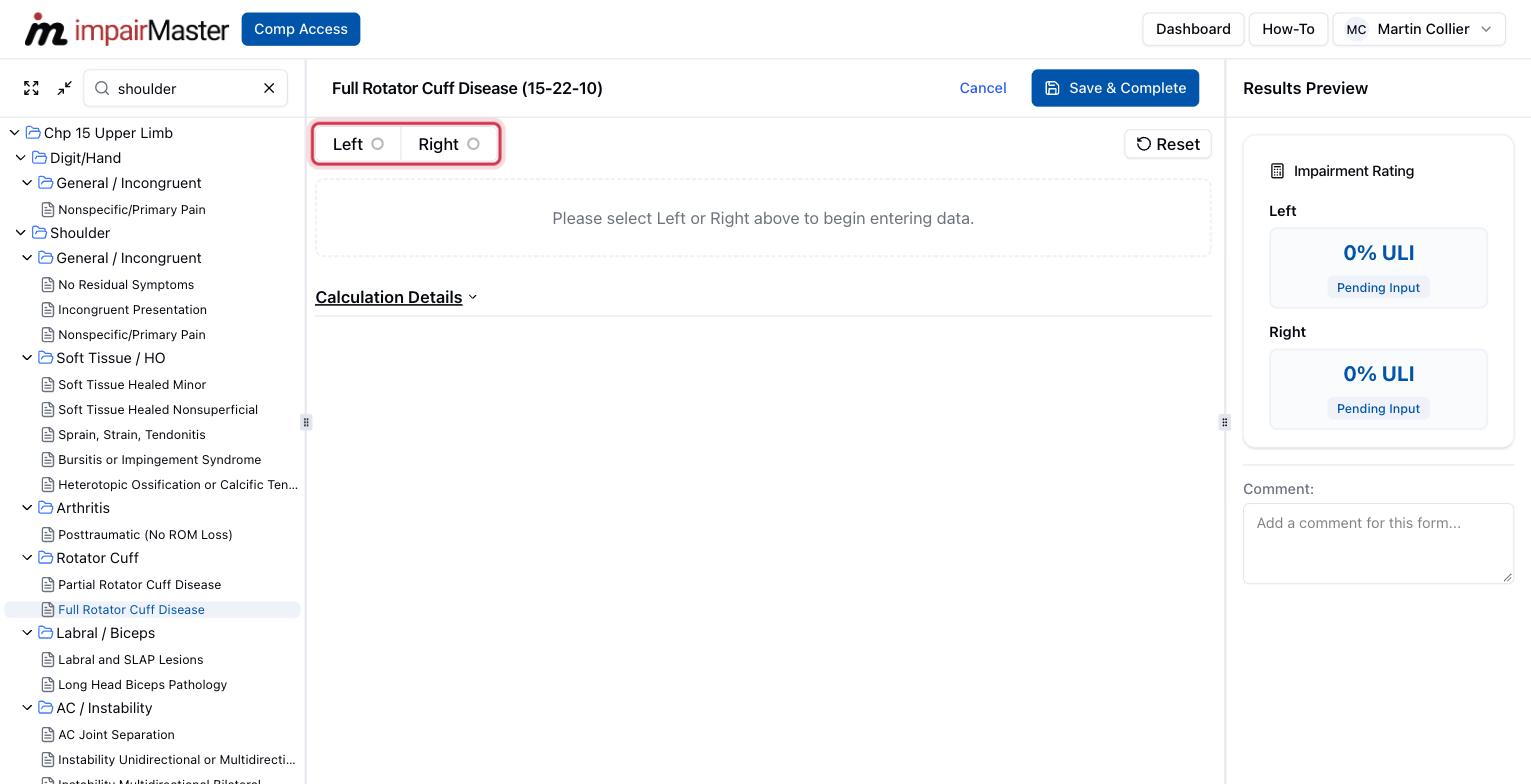
For bilateral body parts, pick Left or Right at the top of the form. The form fields appear once a side is chosen. Forms with tabs (for example, spinal levels) work the same way: pick the tab first.
3. Enter your findings
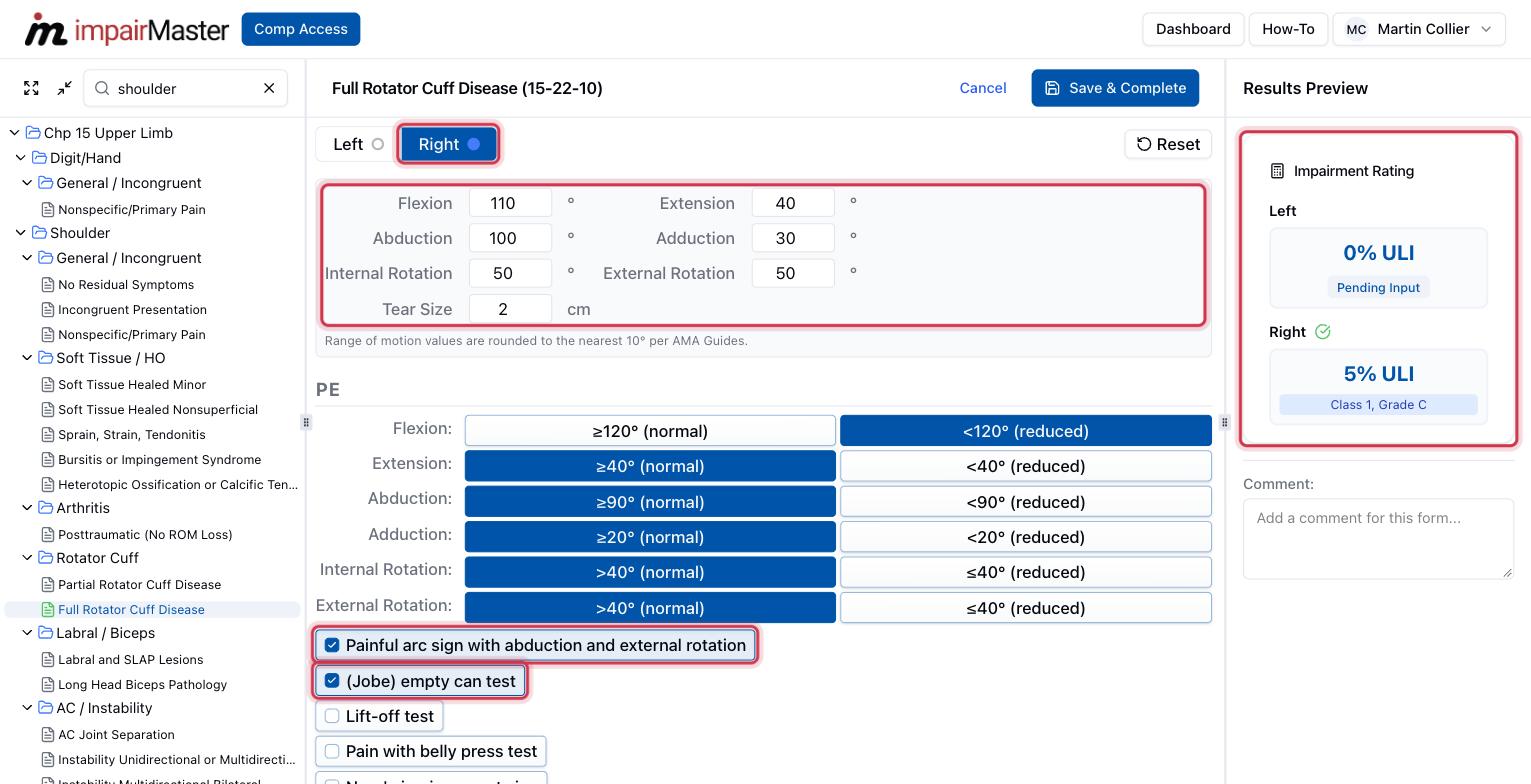
- Type the range-of-motion measurements. Values are rounded to the nearest 10° per the AMA Guides, and the matching PE buttons (normal or reduced) are selected for you.
- Tick each physical examination finding that is present.
- Watch the Results Preview on the right. It updates as you go and shows the class, grade, and impairment for each side.
4. Add clinical studies and save
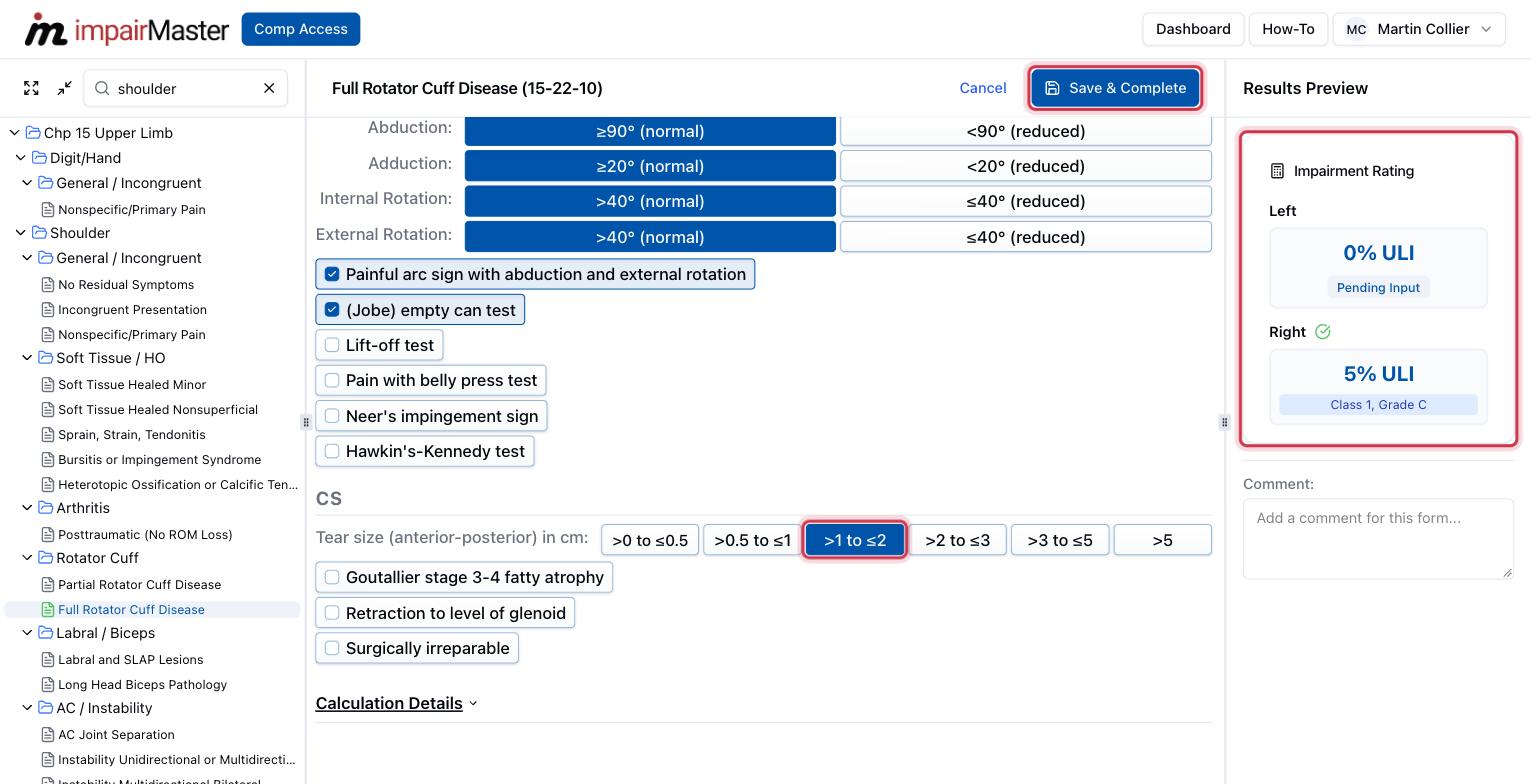
Scroll down to CS and choose the imaging or surgical findings, such as the tear size. Open Calculation Details to see how the rating was reached, and use the Comment: box to add a note to the report.
Ratings are not saved automatically. Click Save & Complete to save the form and go to the report. Cancel discards anything you changed since the last save.
Saved forms are listed under Completed Ratings in the left panel. Click one to reopen and edit it. Repeat for each body part; when there are several impairments, the report combines them into a whole person impairment for you.