Getting started
Create your first impairment exam
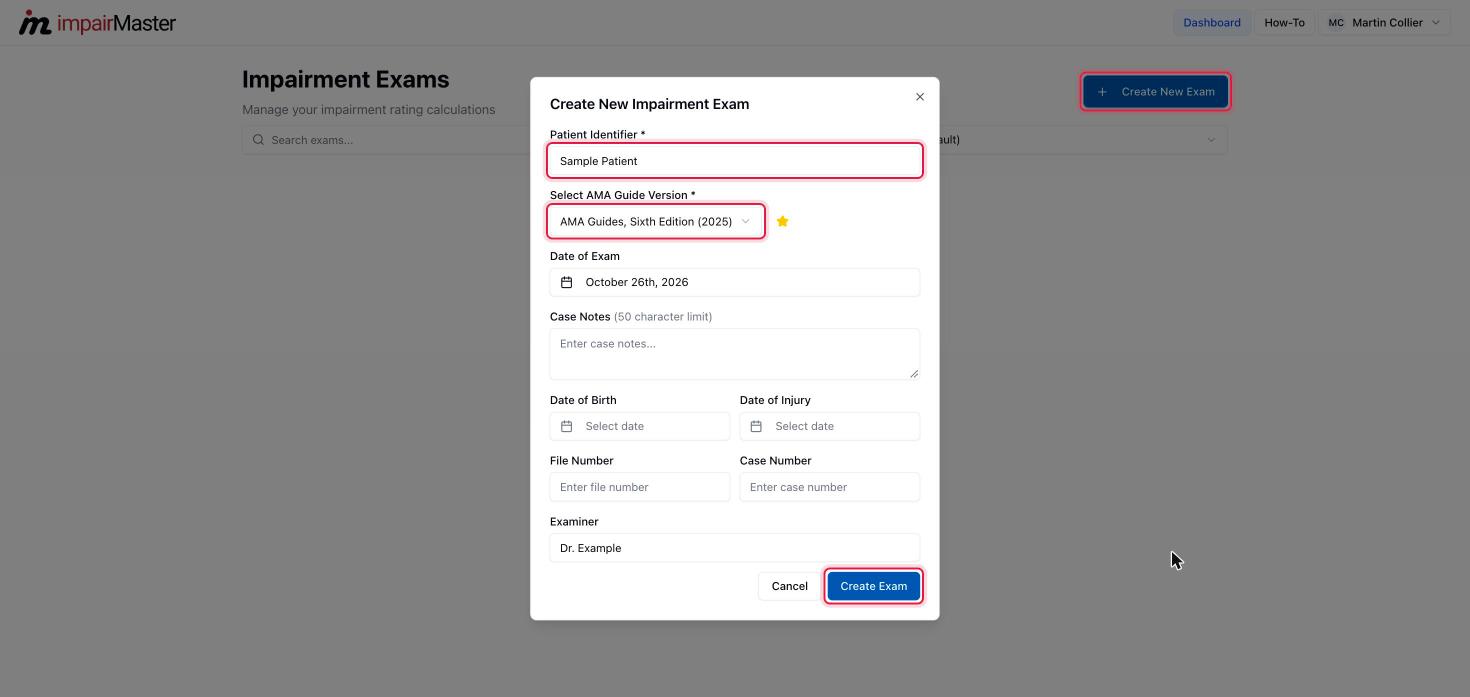
Open the Create New Impairment Exam dialog from the dashboard, pick the AMA Guides version, and open the workspace.
1m 30sUpdated 2026-10-26
Step-by-step
Every impairment rating starts on the Impairment Exams dashboard. Each exam holds one examinee and all of the ratings you enter for them.
Create the exam
- On the dashboard, click Create New Exam.
- Enter a Patient Identifier. A name, initials, or case number all work.
- Choose the edition under Select AMA Guide Version. Click the star next to the dropdown to make that version your default for future exams.
- Optionally set the Date of Exam, Date of Birth, Date of Injury, File Number, Case Number, Examiner, and Case Notes.
- Click Create Exam. ImpairMaster opens the new exam in the workspace.
You can update the optional details later from the dashboard with Edit Record, or from the Patient Info button in the workspace.
Find it again
Your exams are listed on the dashboard. Use Search exams... to find one by name, or Sort by… to order by name or exam date. Click an exam to reopen it.
Free trial
The free trial allows one exam. If you already have one, clicking Create New Exam opens Free plan limit reached. Choose View Plans to subscribe for unlimited exams.